Make your Provider profile clear and complete
Help clients understand your services, see your work, and know how to contact you.
By The Beauty Exchange · Updated · Last reviewed
A useful profile answers a new visitor’s practical questions: what you offer, where you work, what it costs, and how to reach you. Keep it accurate as your business changes.
Open your Provider dashboard
Sign in with your Provider account and open Dashboard from your account menu. The dashboard includes editing controls for your bio, profile details, services, and portfolio. Save each section after making changes. If you are still setting up your profile, finish the Provider setup first.
Introduce your business
- Use a business name clients recognize and a short tagline that describes your work.
- Write a bio that explains your services, experience, and approach without promising results you cannot support.
- Check your location, contact details, and social links. Use Provider setup if you need to revisit location details.
Make your service menu useful
In My Services, use Edit Services to add or update your menu, then Save Services. Give each service a clear name, an accurate price, and a useful description. Explain what is included and how clients should ask about custom work.
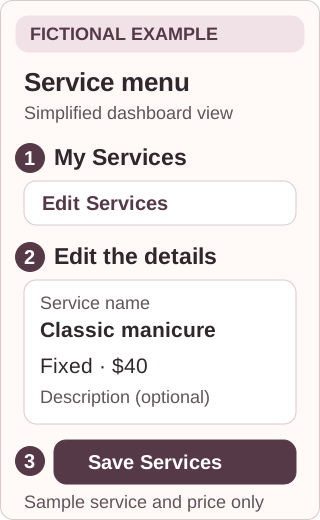
Example 1: update your service menu. This is a fictional, simplified illustration, not an interactive form.
- Open My Services in your Provider dashboard, then choose Edit Services.
- Check Service name, price and Description (optional). The sample service and price are illustrative; enter your own accurate details.
- Choose Save Services after editing. Check your menu again to confirm the changes.
Show your own work
Choose a clear storefront image and add representative work in Portfolio. Use the portfolio editing controls and Save Portfolio when finished. Share only images you own or have permission to use, including permission from identifiable clients. A small, accurate selection is more useful than unrelated images.
Check the next step for clients
Review your accepting-new-clients setting and keep your schedule current. A profile can support discovery and messaging without Stripe. Providers who complete Stripe setup can offer the supported online booking and payment flow. Check the current pricing page before deciding to use payments.
Preview your public profile
Open My Profile from the navigation or account menu. Check your services, images, location, and contact links as a client would. Share your profile link when you are happy with it. Completing a profile helps explain your business; it does not guarantee search position, bookings, or income.
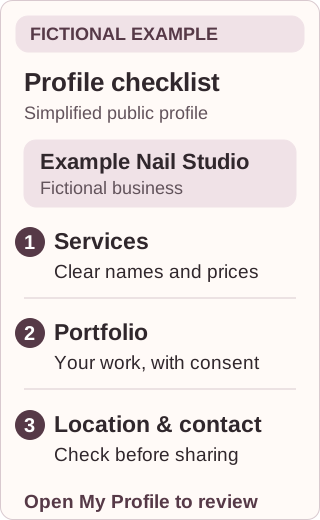
Example 2: read your profile like a new client. The business shown is fictional; the layout is simplified.
- Read your service names, prices and descriptions. Make sure clients can understand what you offer.
- Review your portfolio. Use representative work you own or have permission to share, with consent from identifiable clients.
- Check your location and contact links, then confirm the next step you want clients to take. Use Provider setup if you need to revisit location details.